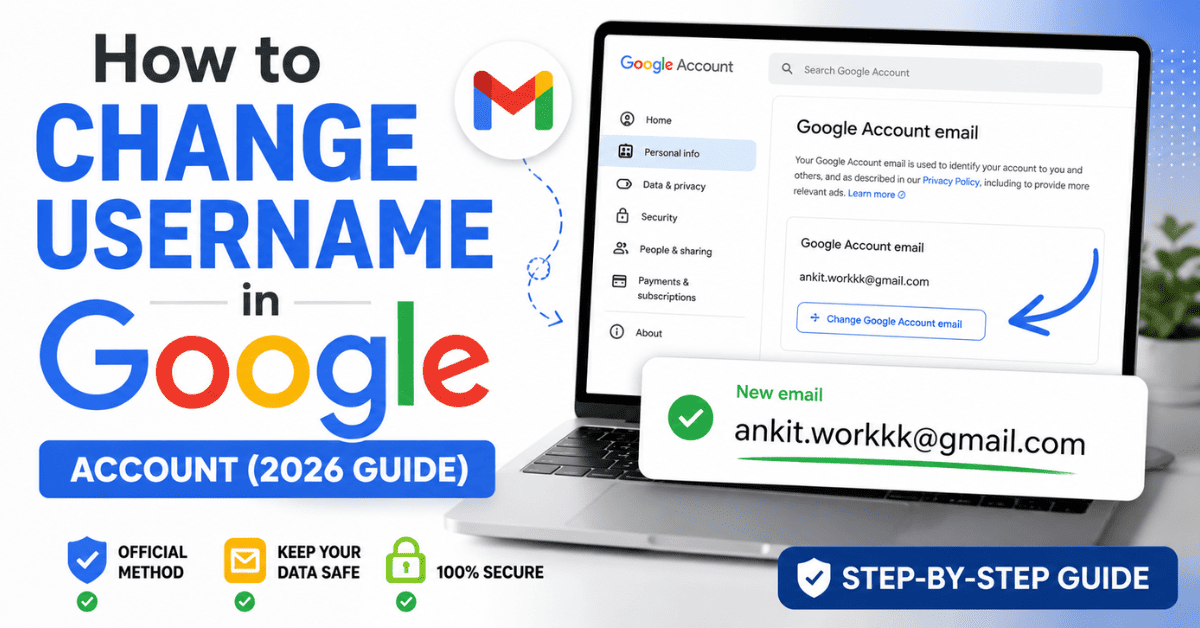
How to Change Username in Google Account (2026 Guide)
Changing your Google Account username (your @gmail.com email address) is now possible for eligible accounts. Follow the steps below to update your username without creating a new Google Account.
Tip: If you prefer watching the process, you can watch the video tutorial below before following the written steps.
Change Username in Google Account (2026 Guide)
Step 1: Open Your Google Account
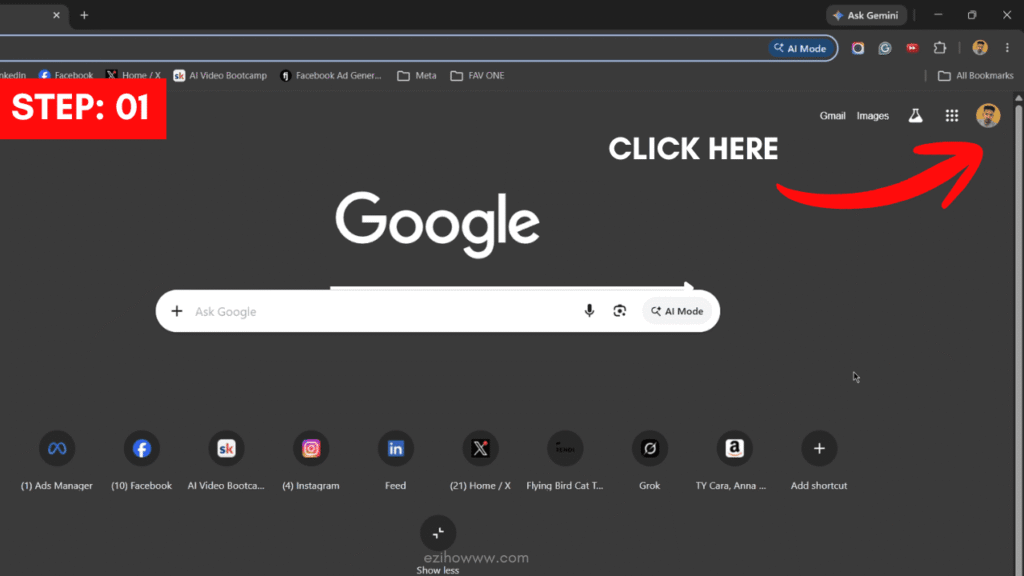
Open Google in your browser and click your profile picture in the top-right corner.
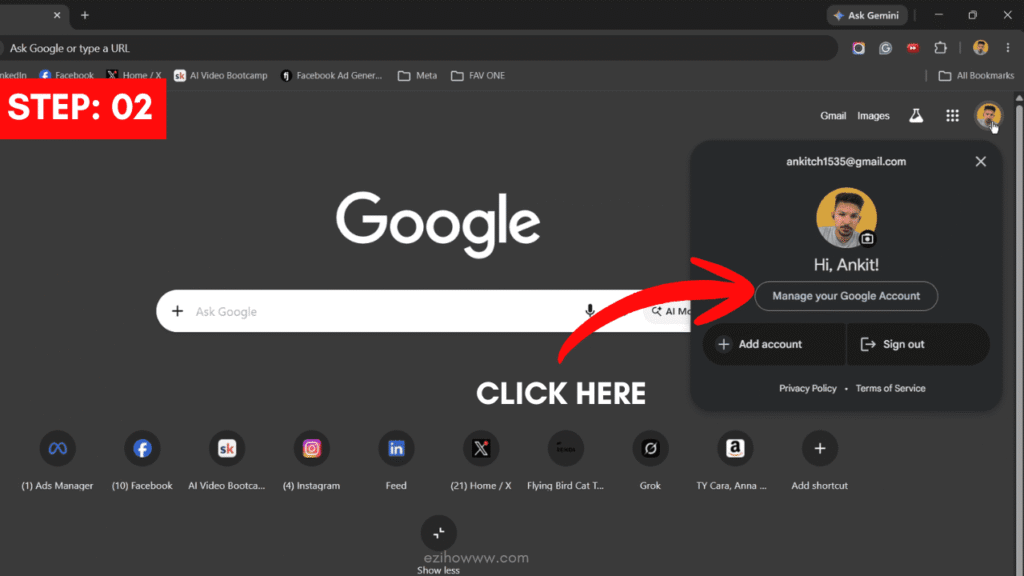
Then click Manage your Google Account.
Step 2: Verify Your Identity
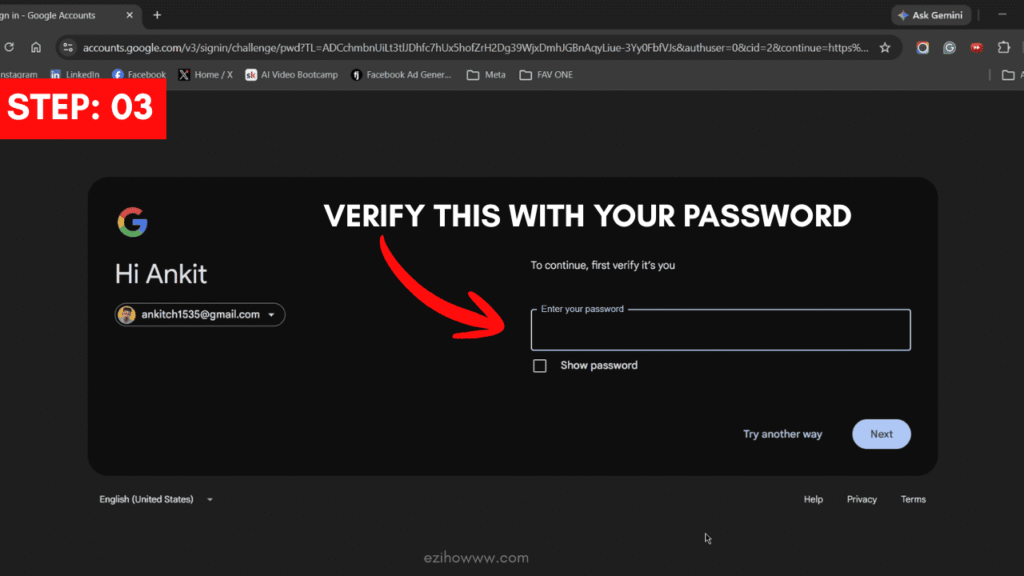
For security reasons, Google will ask you to verify your identity.
Enter your Google Account password and click Next.
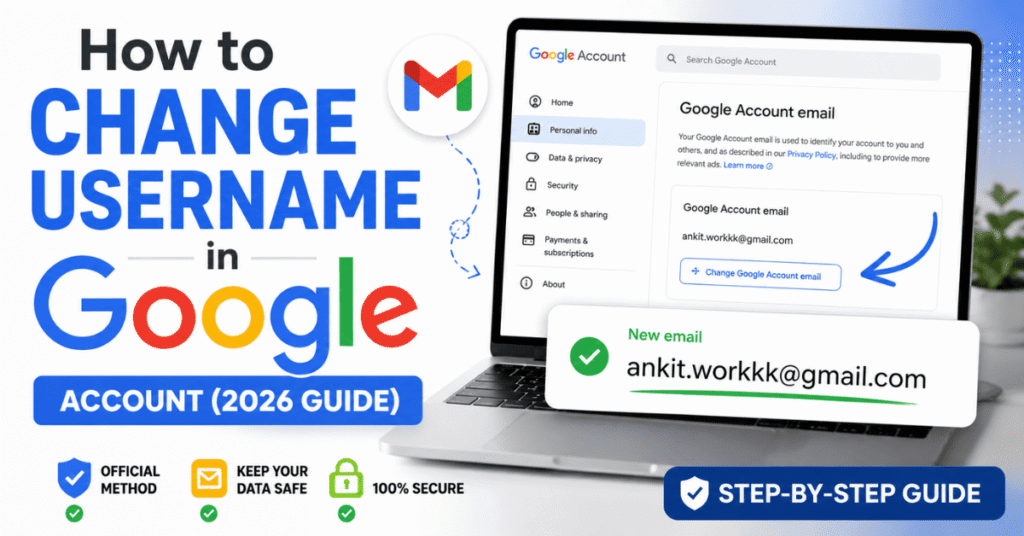
Step 3: Open Google Account Email Settings
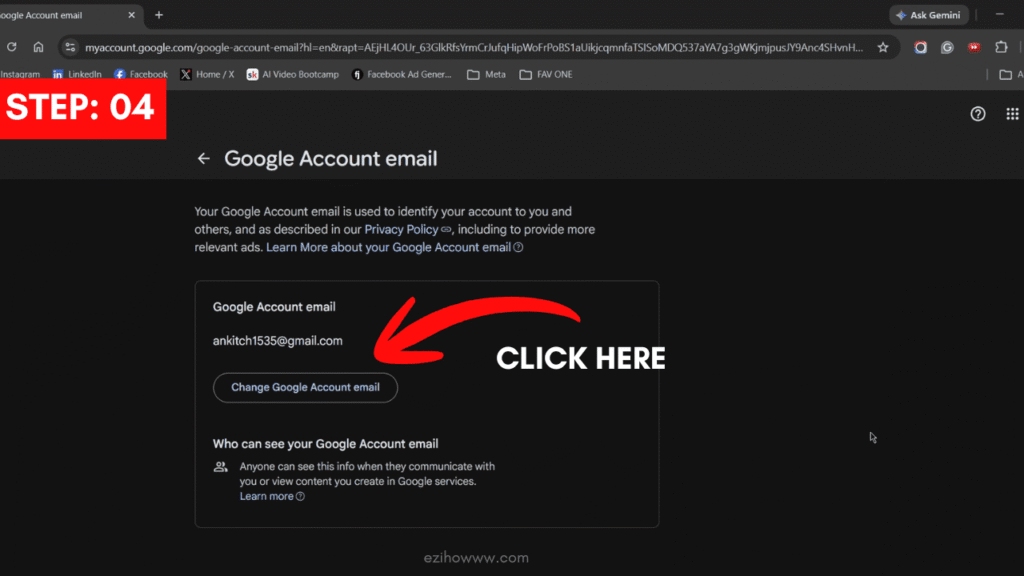
After verification, you’ll be taken to the Google Account email page.
Click Change Google Account email.
Note: If you don’t see this option, the feature hasn’t been rolled out to your Google Account yet.
Step 4: Choose Your New Username
Enter the new Gmail username you’d like to use.
Google will automatically check whether it’s available.
If the username is already taken, you’ll need to choose another one.
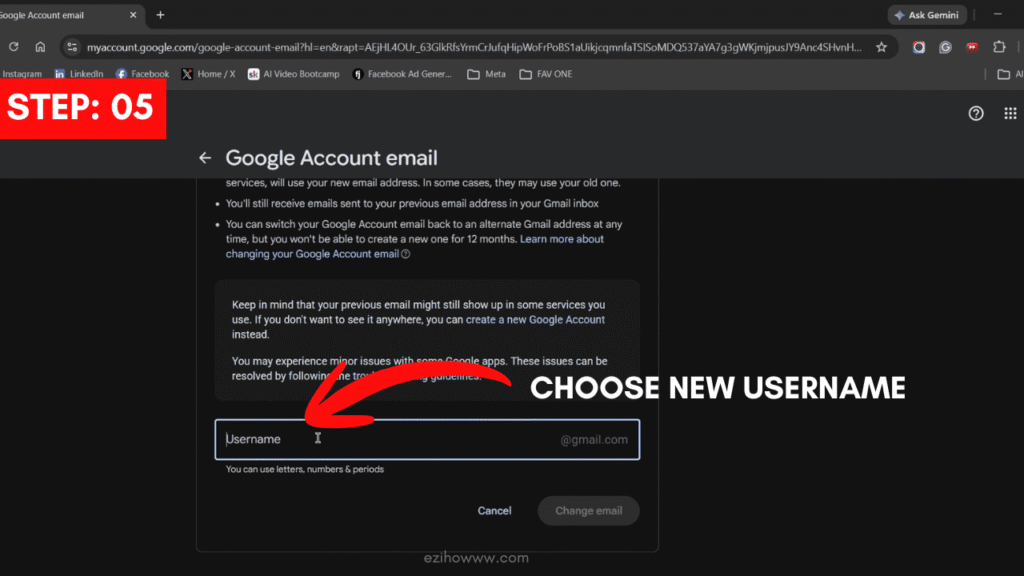
Step 5: Review Your New Email Address
Once you’ve entered an available username, review your new Gmail address.
If everything looks correct, click Change email.
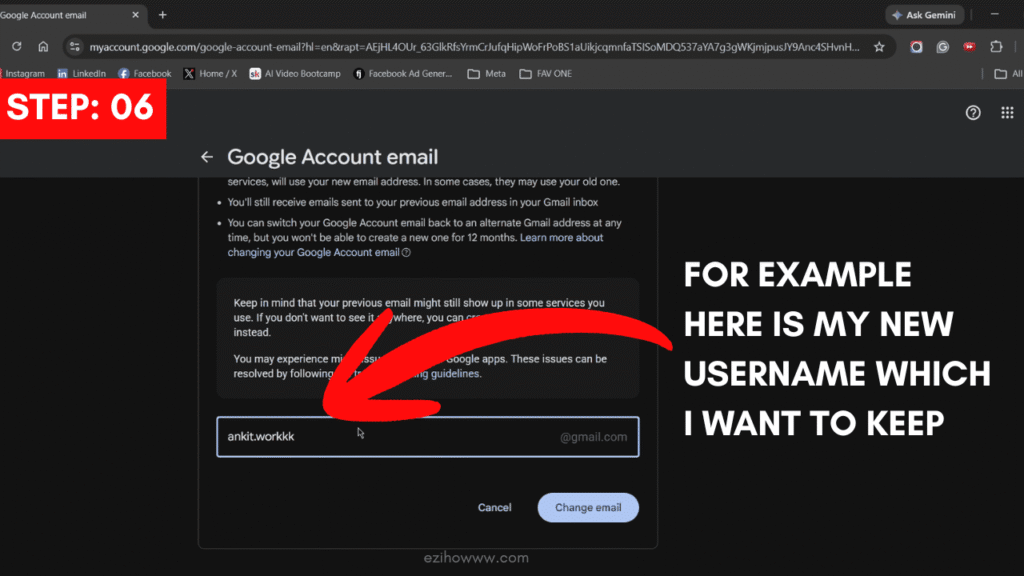
Step 6: Confirm the Change
Google will show a confirmation window displaying your current email address and your new Gmail address.
Click Yes, change email to continue.
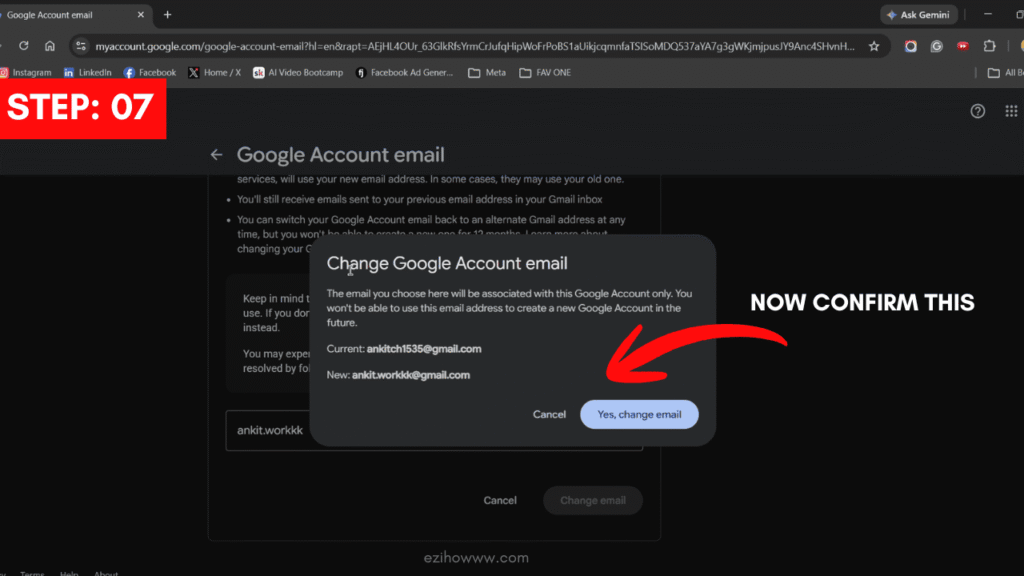
Step 7: Username Successfully Changed
Your Google Account username has now been updated.
Your new Gmail address becomes your primary email address while your previous Gmail address remains linked as an alternate email alias.
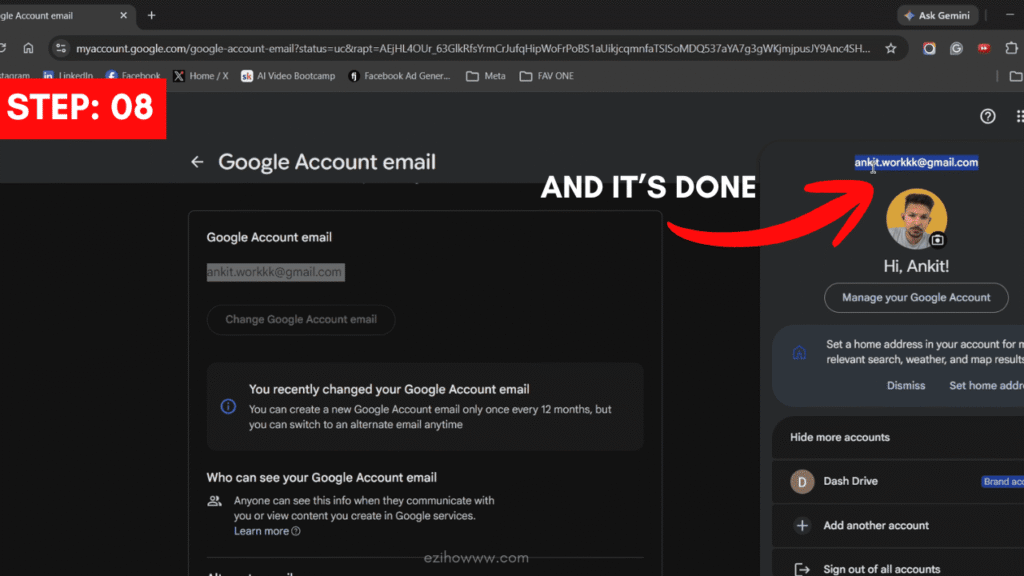
Watch the Full Video Tutorial
If you’d like to follow the process in real time, watch the complete video tutorial embedded below. It walks through every step shown above and demonstrates exactly how to change your Google Account username.
What Happens After Changing Your Username?
Once the change is complete:
- Your new Gmail address becomes your primary email address.
- Your old Gmail address remains as a permanent alternate email alias.
- Emails sent to either address will still arrive in the same inbox.
- Your Google Drive, Photos, Calendar, Contacts, and YouTube data remain unchanged.
- You can create a new Google Account email only once every 12 months.
Frequently Asked Questions
Can I change my username in my Google Account?
Yes. Google now allows eligible users to change their @gmail.com username without creating a new account. If your account supports the feature, you’ll see the Change Google Account email option in your account settings.
How do I change my Google Account username?
Go to Google Account > Personal info > Email > Google Account email, then click Change Google Account email. Enter your new username and confirm the change.
Why don’t I see the “Change Google Account email” option?
The feature is still rolling out and isn’t available for all Google Accounts. If you don’t see the option, your account or region may not be eligible yet.
Will I lose my emails after changing my Gmail username?
No. Your emails, Google Drive files, Photos, Calendar events, Contacts, and other Google data remain unchanged after you change your Gmail username.
What happens to my old Gmail address?
Your previous Gmail address becomes a permanent alternate email alias. Emails sent to both your old and new addresses will continue to arrive in the same inbox.
Can I change my Gmail username more than once?
No. Google currently allows eligible users to create a new Google Account email only once every 12 months.
Can I choose any Gmail username?
Yes, as long as it’s available and follows Google’s username guidelines. If the username is already taken, you’ll need to choose a different one.
Will my Google Drive and YouTube account change?
No. Changing your Gmail username doesn’t create a new Google Account. Your Google Drive, YouTube, Photos, Calendar, and other Google services remain linked to the same account.
Do I need to create a new Google Account?
No. If your account is eligible, you can change your Gmail username without creating a new Google Account.
Is changing my Google Account username free?
Yes. Google lets eligible users change their Gmail username at no cost.
Will I need to update my email on other websites?
Yes. Although your old Gmail address continues to work, it’s a good idea to update your email address on banking apps, shopping websites, social media accounts, and other services where you use your Gmail address.
Does changing my Gmail username affect my Google Account password?
No. Your password stays the same after changing your Gmail username. You can continue signing in with your existing password.
Important Things to Know
Before changing your username, keep these points in mind:
- This feature is still rolling out, so not every Google Account has access yet.
- Your new username must be available.
- Your previous Gmail address cannot be deleted.
- Some websites and apps may still use your old email until you update it manually.
- Google allows you to create a new Google Account email only once every 12 months.